
Edit a form in the builder
Add questions, a signature, payments, and thank-you actions. Preview, then publish.
The builder is a SurveyJS editor. The left strip is the toolbox (questions you can add). The middle is the form. The right panel edits the selected question — title, required, help text. The top bar is how you share and publish.
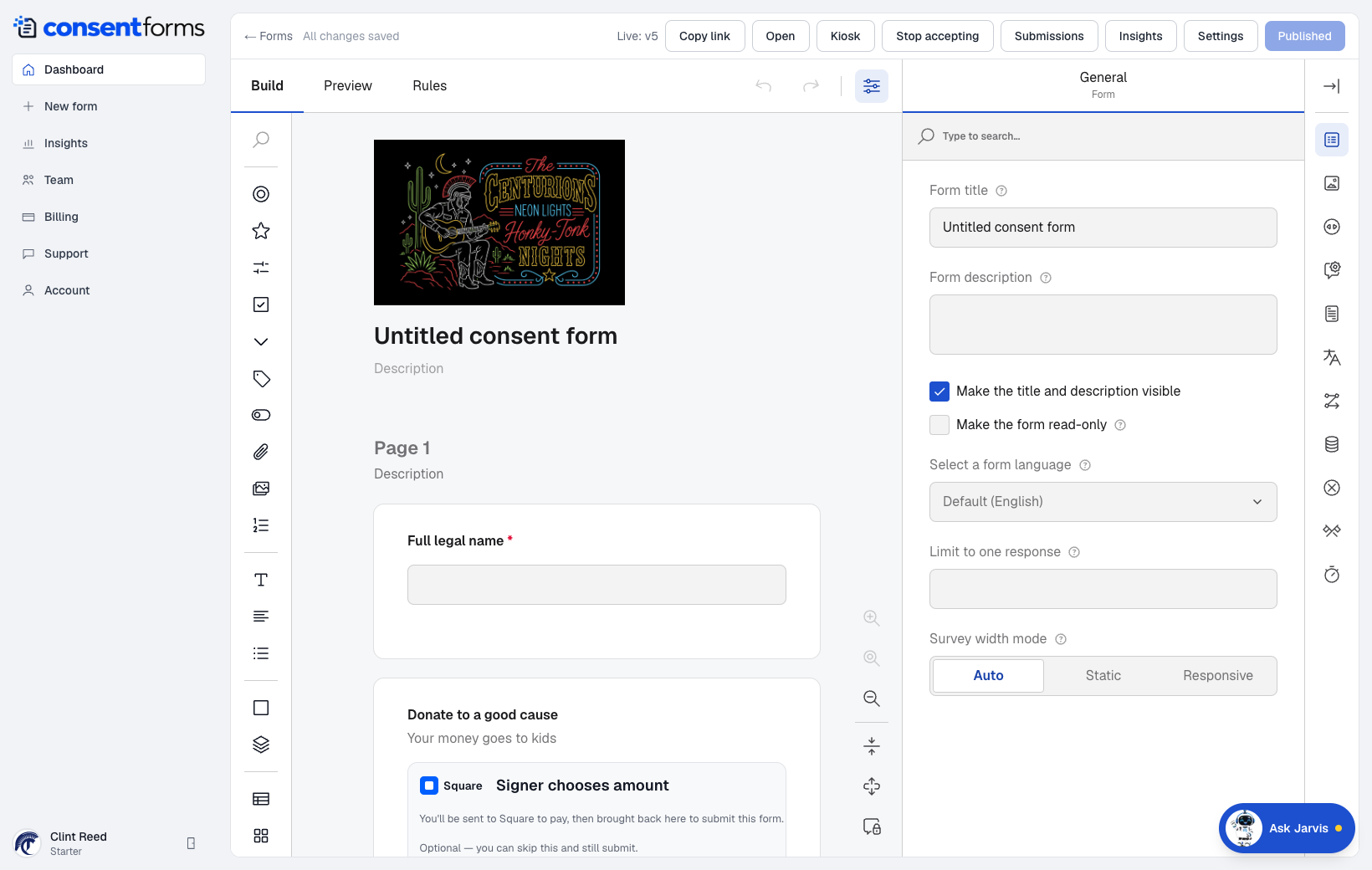
- 1Copy link — only works after the form is published.
- 2Settings — share, kiosk, background, email copies, delete.
- 3Publish (or Published). Drafts are invisible to clients.
- 4Toolbox — drag a Signature, text, choice, or Payment field onto the page.
- 5Form title — this is what you see on the dashboard, not only the heading on the page.
Always include a signature
Consent, waivers, and releases should have a Signature field. Put it after the legal text, not before. Mark identity fields (name, email) required so the PDF and audit trail have something to attach the signature to.
Preview, Rules, and thank-you
- Preview shows the form the way a signer sees it.
- Rules hide or show questions based on earlier answers (for example a parent block only if they said the signer is a minor).
- On the completed page you can add thank-you actions: download PDF, fill again (kiosk), or a custom button.
Payments live on a Payment field — see Connect Stripe or Square. Do not paste processor keys into a text question.