
Publish, share, and brand a form
Copy the client link, print the QR, email or text a signer, and set a background.
Sharing starts in the builder top bar or at Settings for that form. The public URL looks like /f/your-slug. Nobody can open a draft.
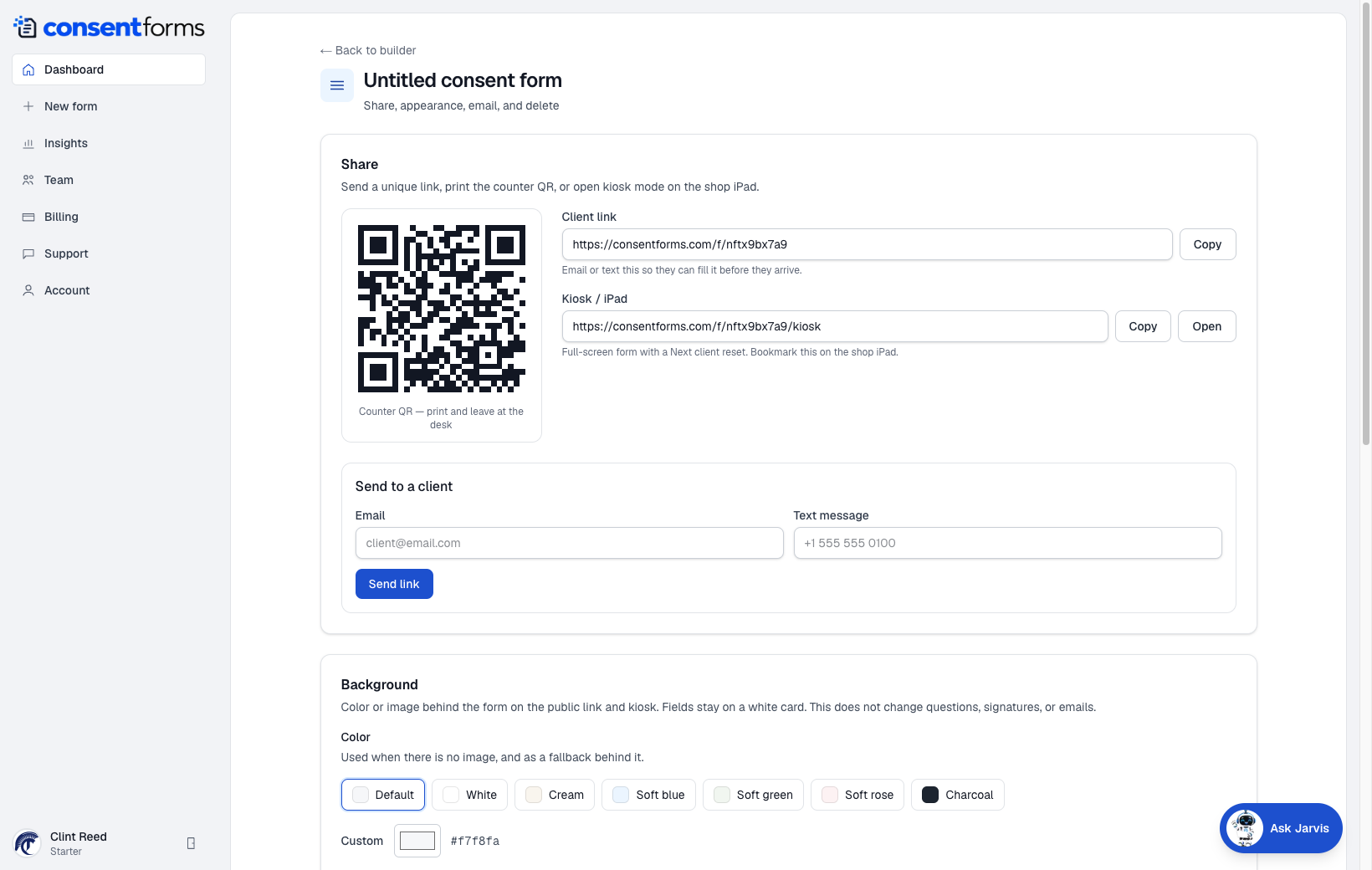
- 1Copy the client link — email or text this so they can sign before they arrive.
- 2Counter QR — print it and leave it at the desk.
- 3Kiosk / iPad link — full screen with a Next client reset. See kiosk mode.
- 4Send link — email and, when SMS is enabled on the account, a text message.
- 5Background color or image behind the public form. Fields stay on a white card.
Stop accepting
Use Stop accepting in the builder toolbar when a season ends or a class is full. The form stays in your account; the public link shows that it is closed. Publish again (or resume accepting) when you want it live.
Email copies of the PDF
Further down Settings you can send a PDF copy to the signer and/or to an address at your business after each submission. Test this with your own email before a busy day. The same page has an outbound webhook if you want another system notified when someone signs.