
Build a form with Jarvis
Try two demos before signup, or describe a form in your account. Upload a document or paste a URL.
There are two Jarvises. The one on New form builds a form. The round Ask Jarvis button in the corner explains the product and your account — it does not create fields.
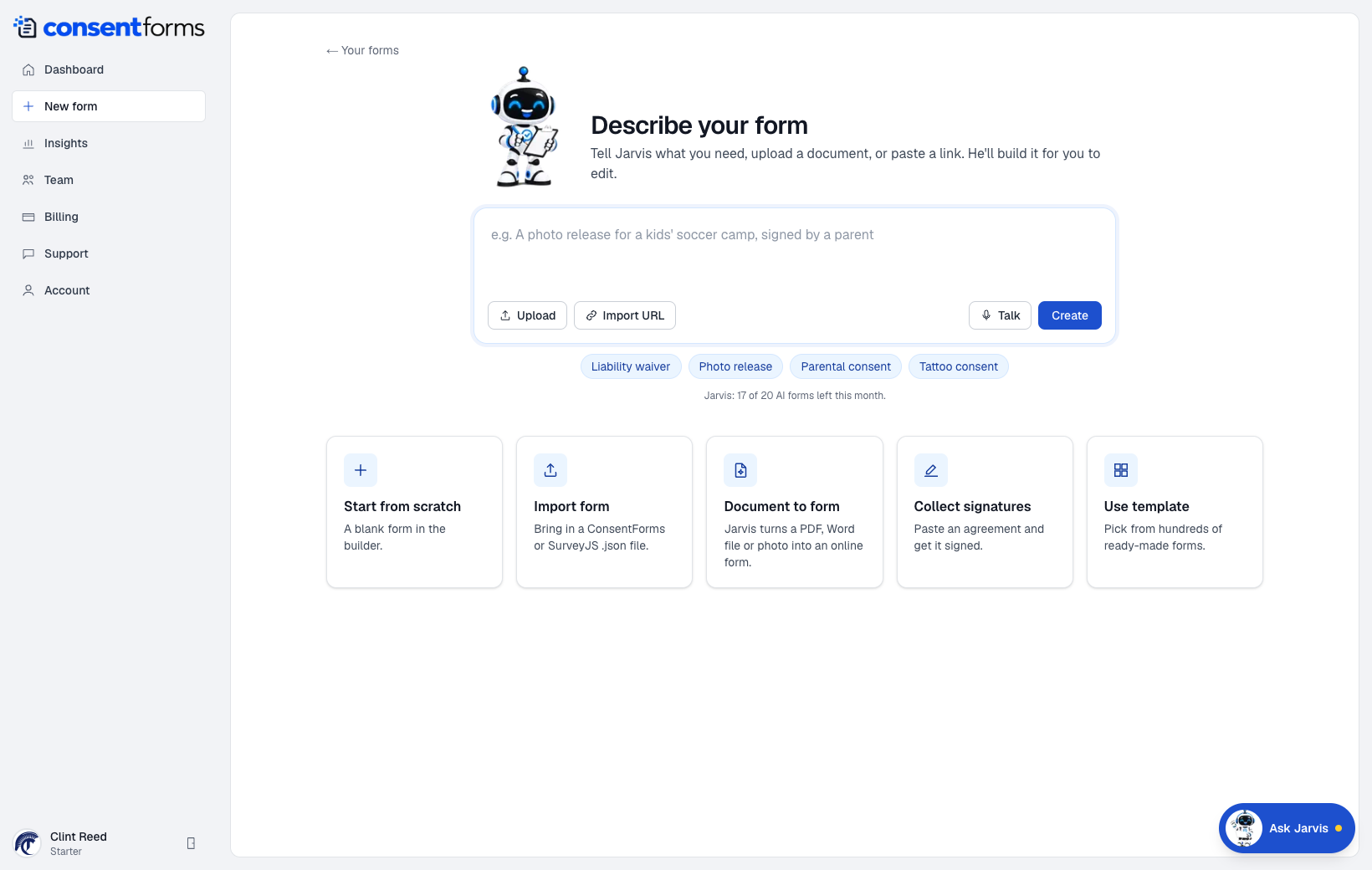
- 1Prompt — be specific: who signs, for what, and any extra fields (emergency contact, photo release).
- 2Upload a PDF, Word file, or a photo of a paper form.
- 3Import URL — paste a public page that already has the waiver.
- 4Talk, then Create.
What to type
Good prompts name the activity and the signer:
- “Parental photo release for a kids' soccer camp, English, include emergency contact and a signature.”
- “Tattoo aftercare consent, 18+, initials on each paragraph, signature at the end.”
Try Jarvis before you sign up
On the public Jarvis page you can build two demo forms without an account. We track that with a cookie and a daily network limit so a refresh cannot mint extras. After two, you have to sign up — we copy those drafts into your workspace. Signed-in building still uses the monthly Jarvis allowance on your plan.
Allowance
Each successful Create in your account counts as one Jarvis AI form for the month. The counter under the prompt shows how many you have left. Limits by plan are on Billing. Editing a form after Jarvis drafts it does not use another credit.