
Connect Stripe or Square
Paste keys from your processor account onto a Payment field. We save them once for the workspace, so every form can charge to the same account. Cards are entered on Stripe or Square, never on ConsentForms.
Test vs live
Both processors have a fake-money mode and a real-money mode. Use sandbox while you try the form with test cards. Switch to live/production only when you are ready to take real payments. The keys are different — a sandbox secret will not work in live mode and vice versa. Stay in the same sandbox (or live account) when you copy keys and create the webhook.
- Stripe uses a Sandbox switcher at the top left of the dashboard (not a Test mode toggle). Sandbox secret keys start with
sk_test_, live keys withsk_live_. - Square calls this Sandbox and Production. Toggle it at the top of the Developer Console before you copy credentials. Sandbox charges never move real money.
Stripe
Settings → Developers is API policies. Keys and webhooks are not on that page.
- Log in at dashboard.stripe.com. Pick a Sandbox from the top-left switcher until you are ready to go live. The dark bar says “You’re testing in a sandbox.”
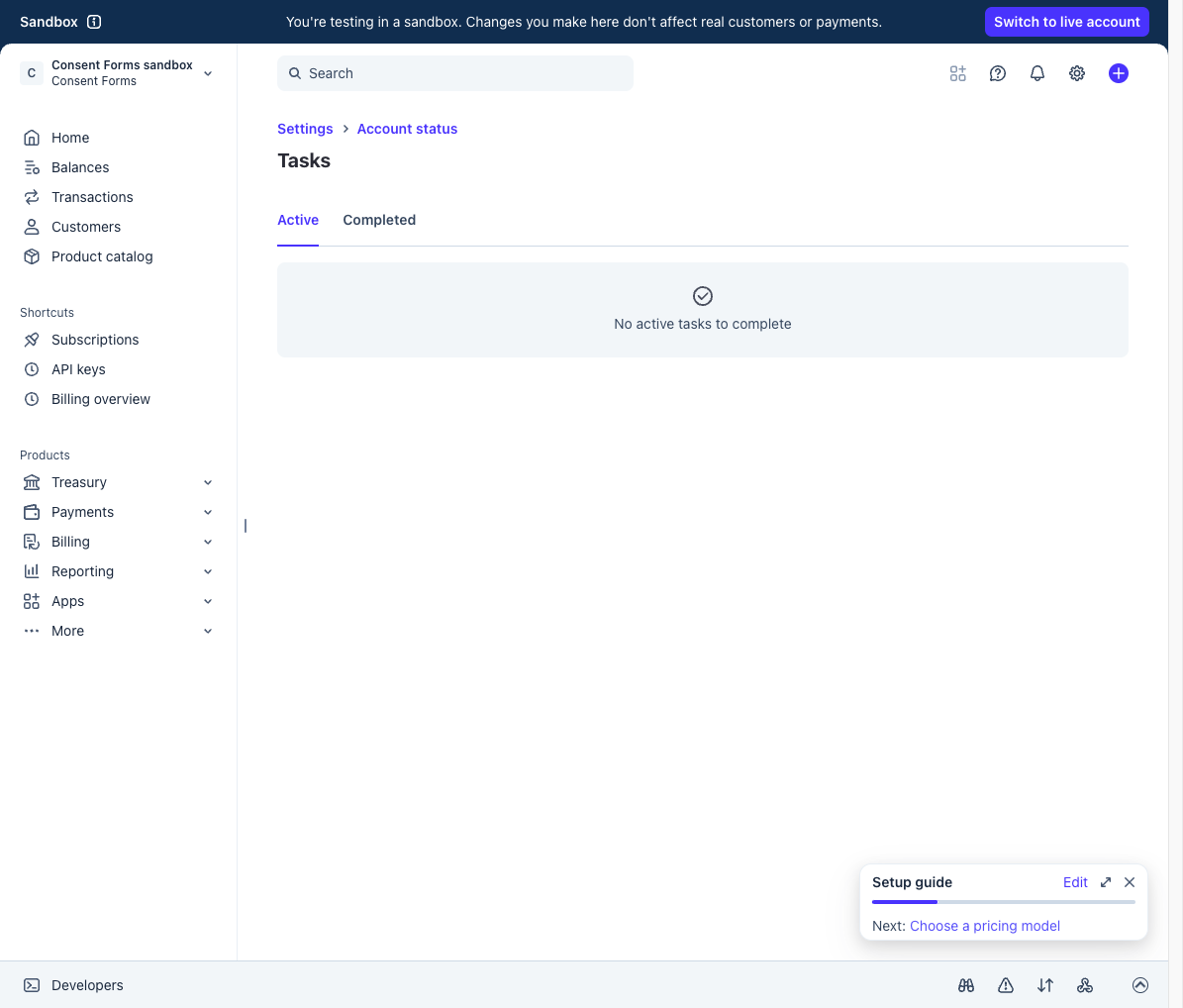
Sandbox is the top-left switcher. API keys is in Shortcuts on the left — not under Settings → Developers. - Open API keys — left sidebar Shortcuts → API keys, or search “API keys”. Copy the Secret key (starts with
sk_test_orsk_live_). Do not paste the publishablepk_key.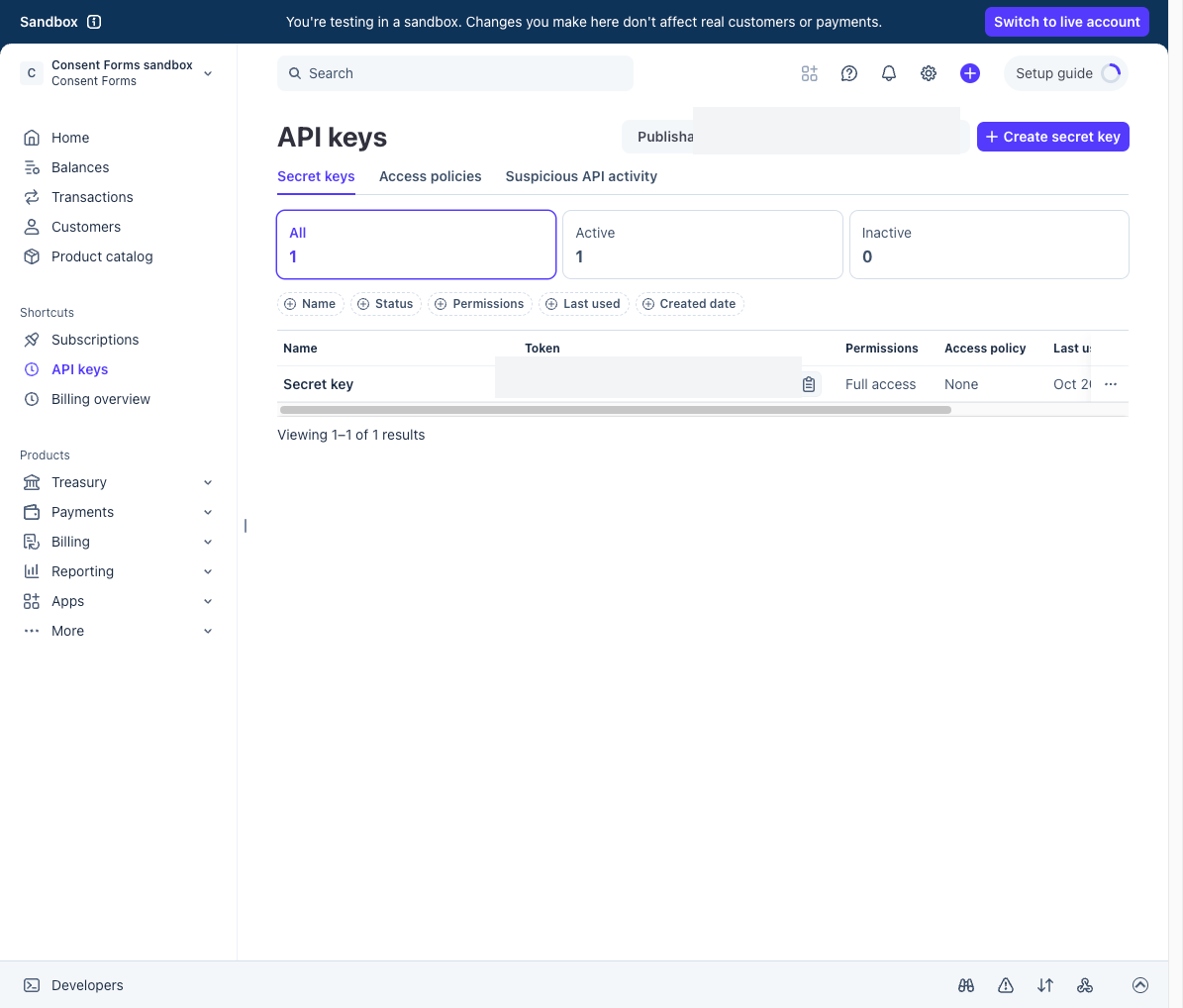
Copy the Secret key. Reveal it on your screen, then paste it into the Payment field — we never show the full value in this guide. - Open Webhooks. Fastest path: search “Webhooks” at the top of the dashboard, or open Workbench (Developers at the bottom of the dashboard) → Webhooks. Click Add destination. You may already have other destinations; add a new one and paste the webhook URL from the Payment field.
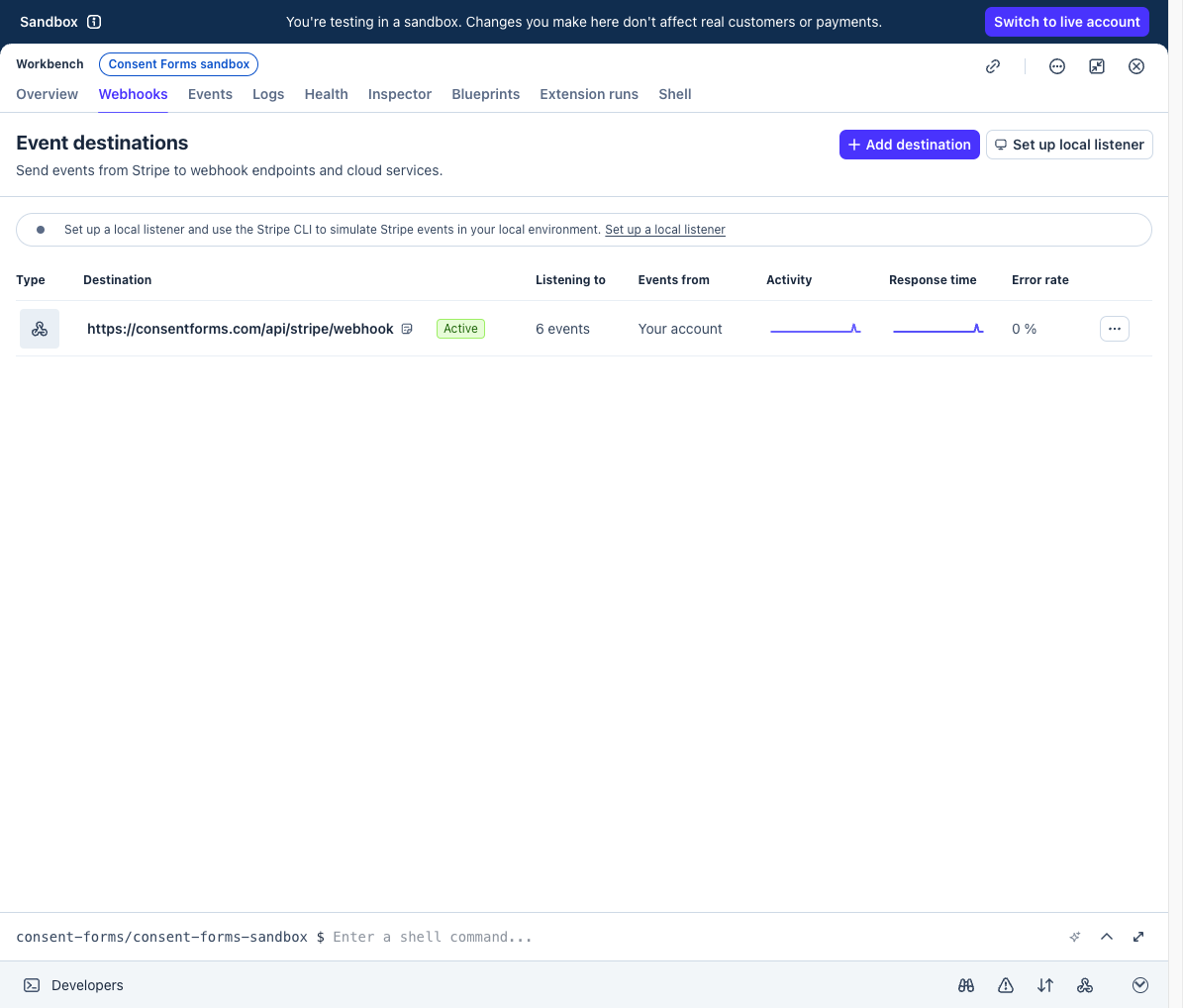
Workbench → Webhooks. Click Add destination. One URL covers every form in the workspace. - Choose events on Your account. When Stripe asks for payload format, pick Snapshot (not Thin).
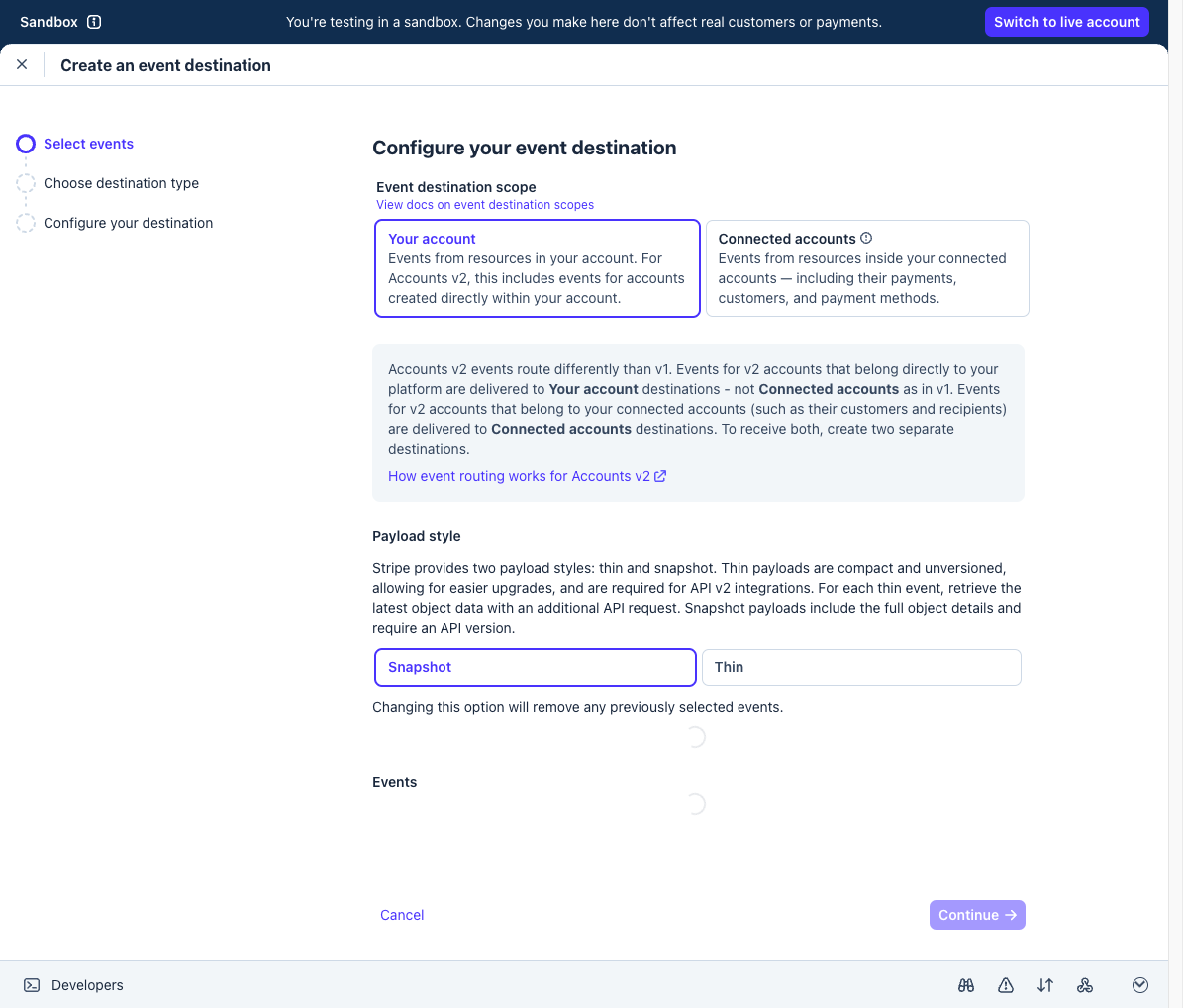
Your account + Snapshot. Thin events will not work with ConsentForms. - Search for
checkout.sessionand listen forcheckout.session.completed,checkout.session.expired, andcheckout.session.async_payment_failed, then Continue.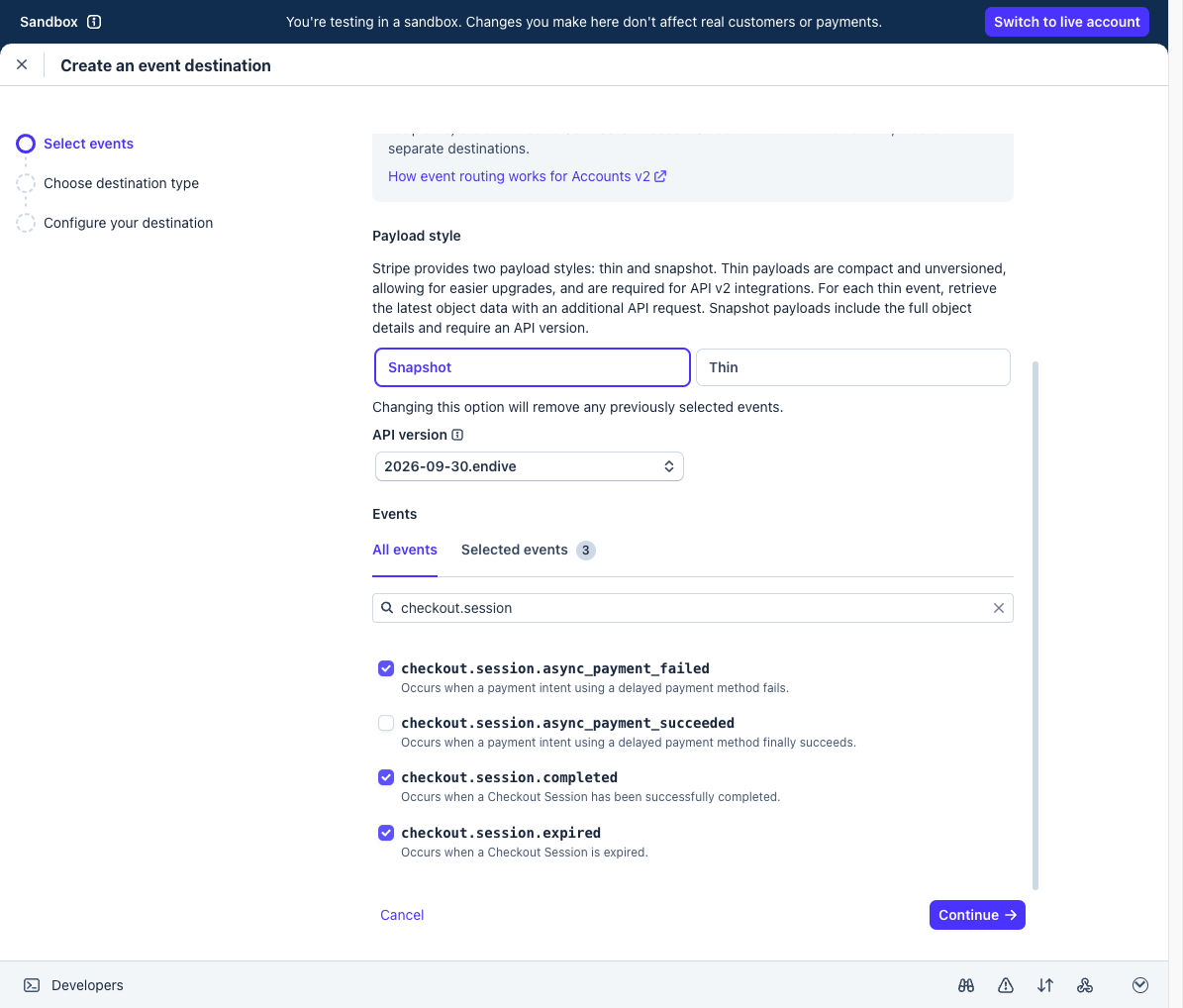
Select these three Checkout Session events, then Continue. - Destination type is Webhook endpoint (not Amazon EventBridge or Azure Event Grid). Continue.
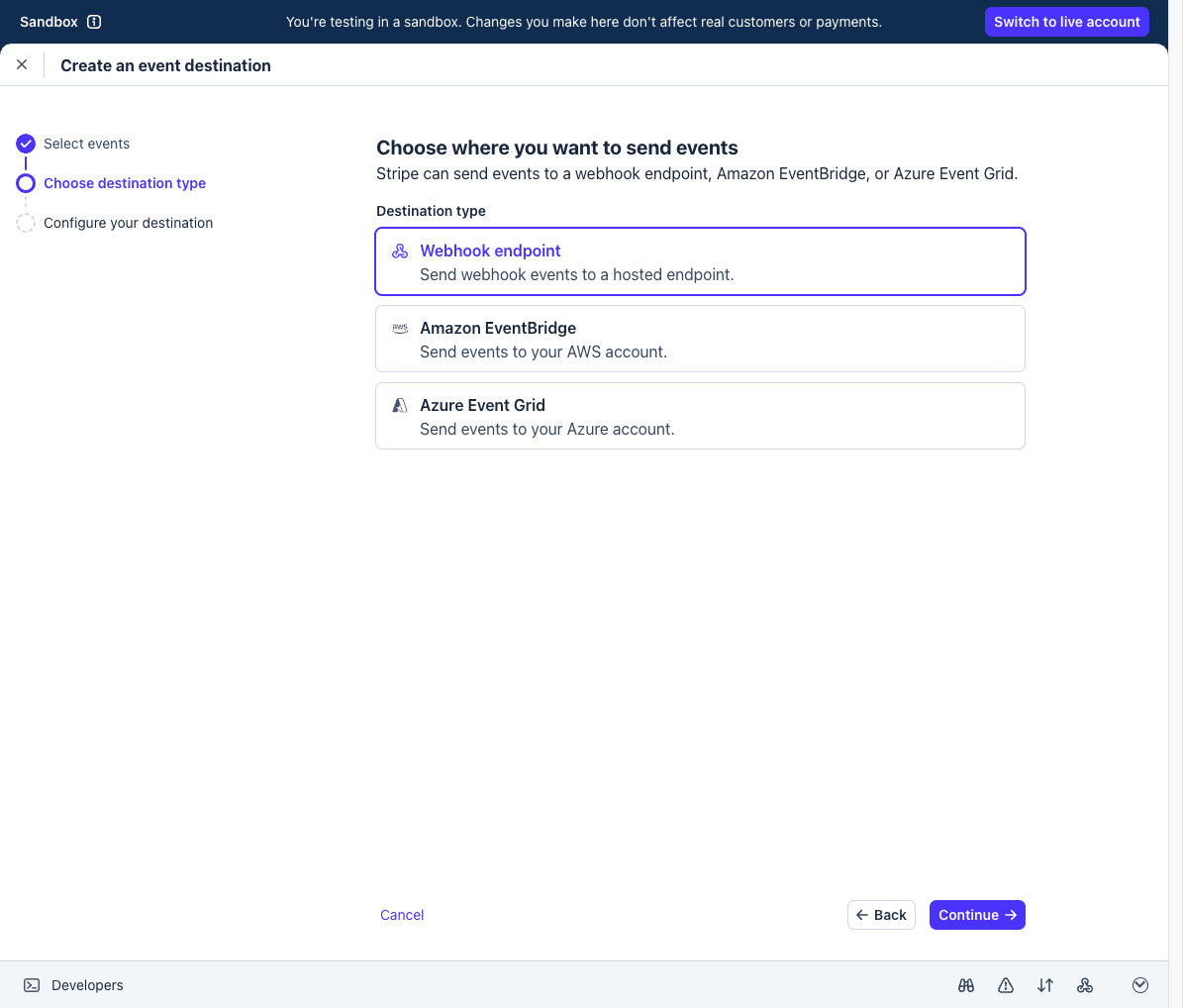
Webhook endpoint. Continue. - Paste the webhook URL from the Payment field into Endpoint URL, then Create destination.
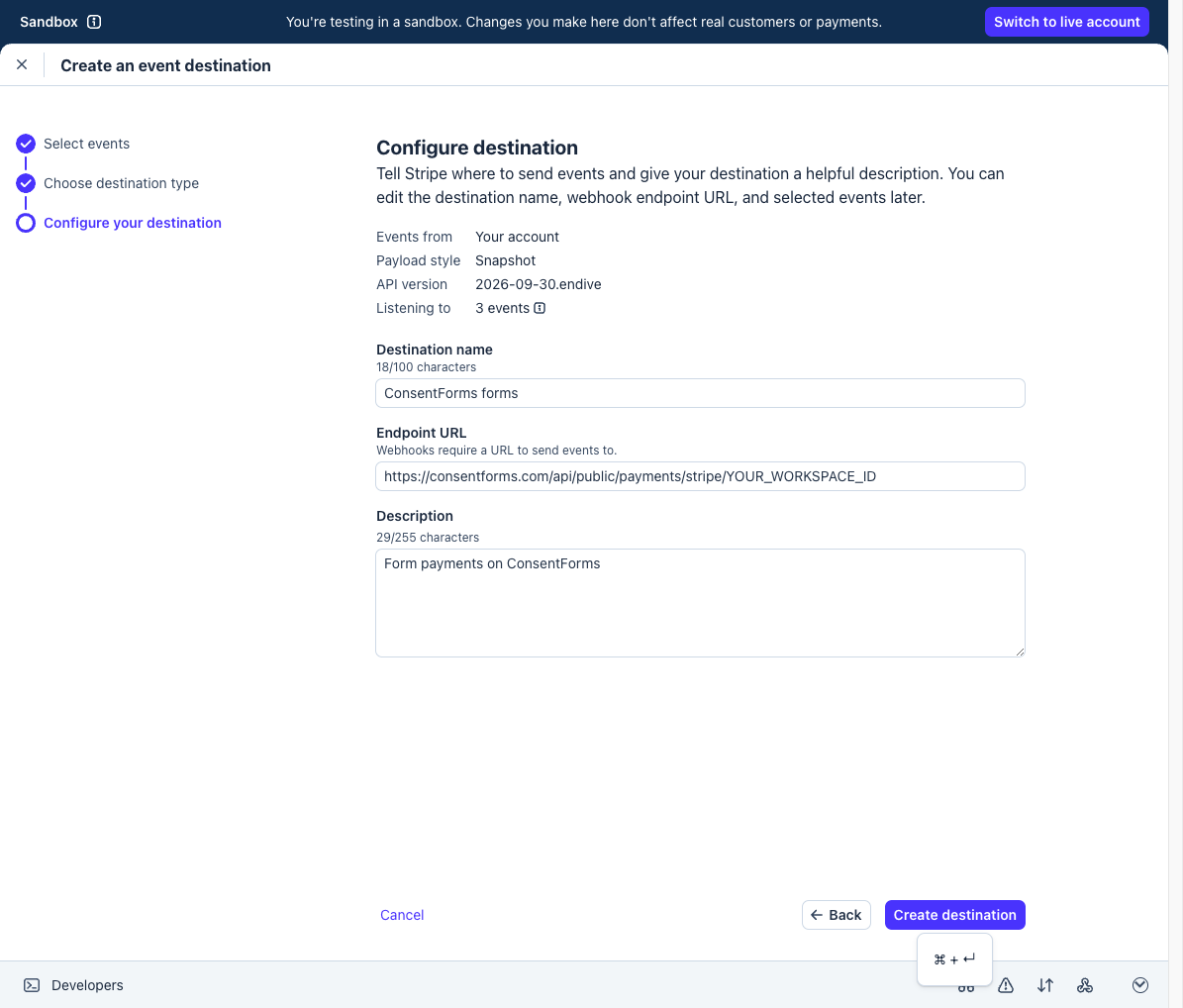
Paste the URL shown on the Payment field. Do not invent the workspace id — copy it from the form. - On the destination page, under Signing secret, click the eye and copy the value that starts with
whsec_.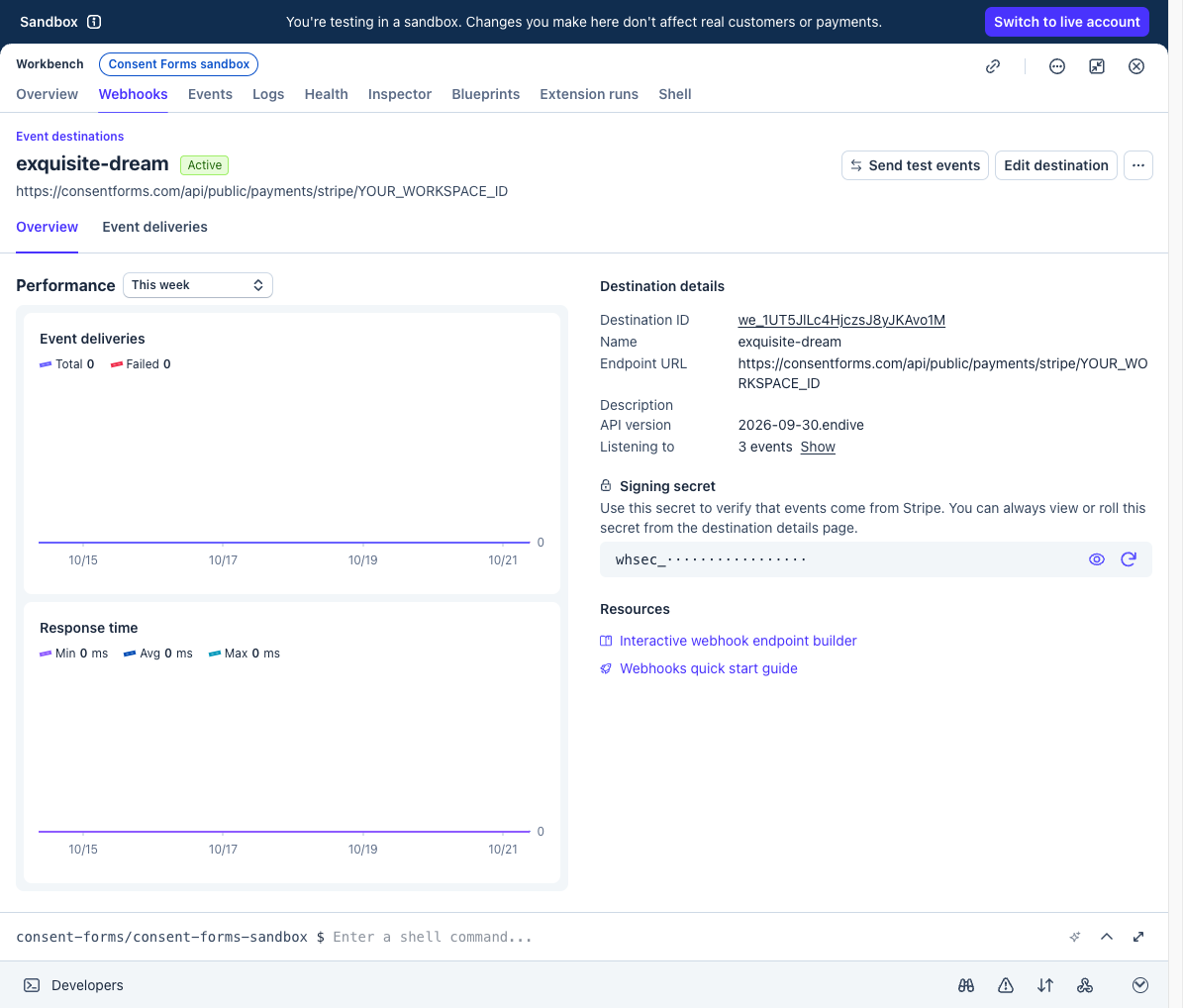
Click the eye next to Signing secret, copy whsec_…, and paste it into the Payment field. We keep the value hidden here. - Back on the Payment field, paste the secret key and the webhook signing secret, then Save keys.
Square
- Open the Square Developer Console. Create a new application with the + tile if you do not already have one for ConsentForms, then Open it.
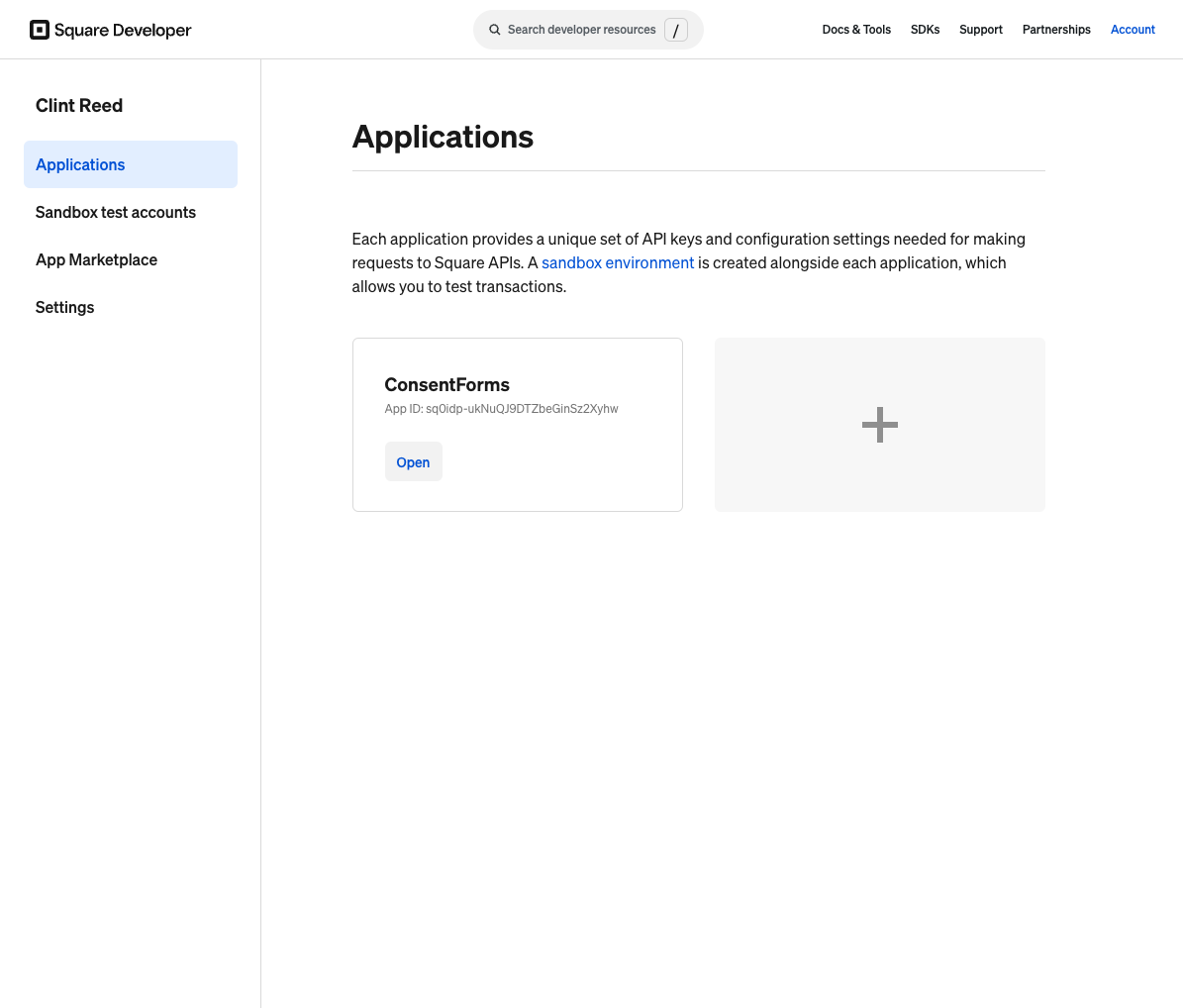
Applications. Click + to create an app, then Open it. Sandbox credentials live on that app, not on an existing production shop. - At the top of the app, select Sandbox (switch to Production only when you are ready for real money). Open Credentials and copy the Access token. The intro sentence may still say “production credentials” even in Sandbox — trust the toggle and the Sandbox labels.
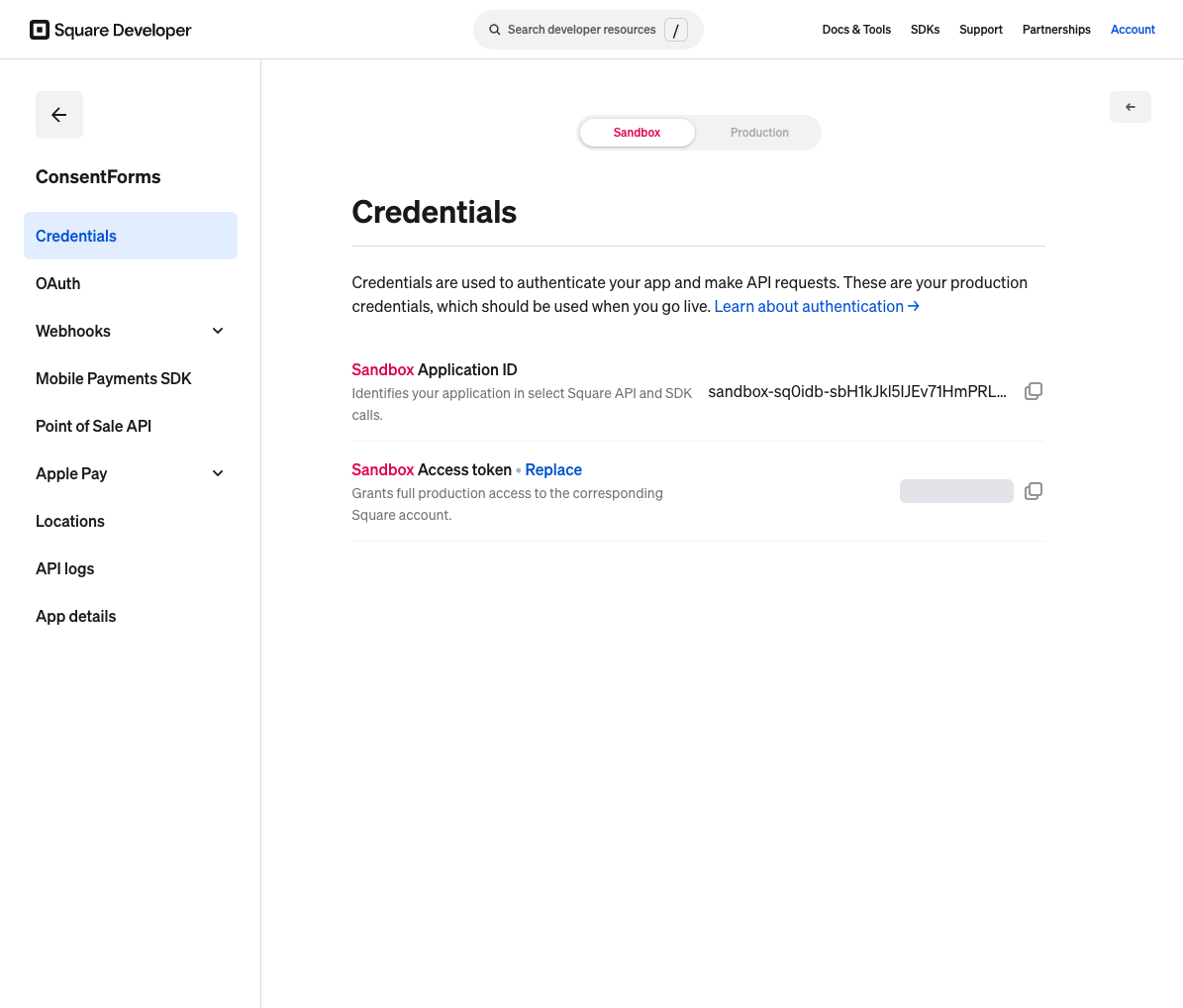
Sandbox must be selected at the top. Copy the Access token. We keep the value hidden here. - Open Locations and copy the Location ID for the shop that should receive the money. In Sandbox this is often Default Test Account.
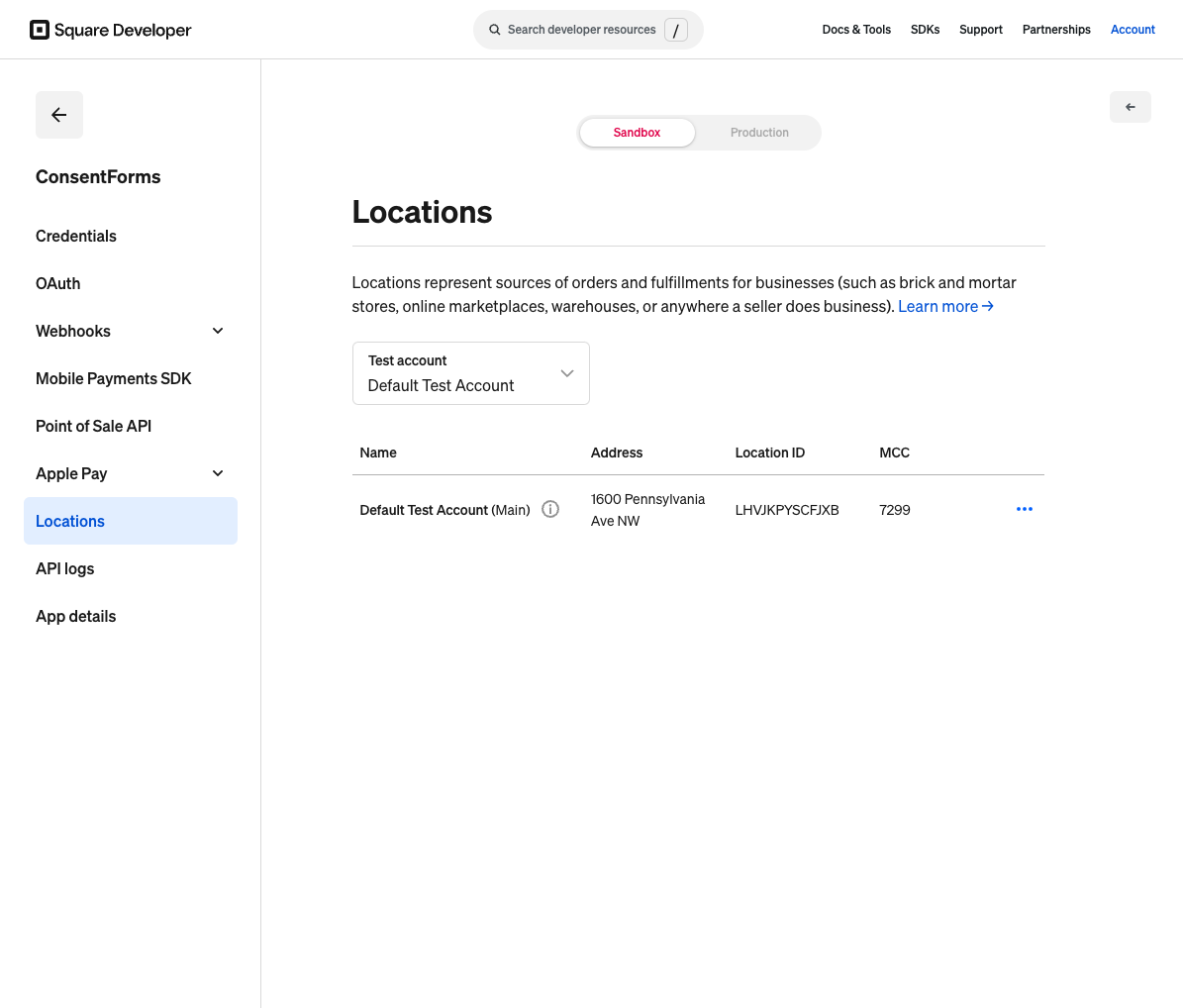
Copy the Location ID. In Sandbox, pick Default Test Account unless you created another test seller. - Open Webhooks in the sidebar → Subscriptions. Click Add subscription.
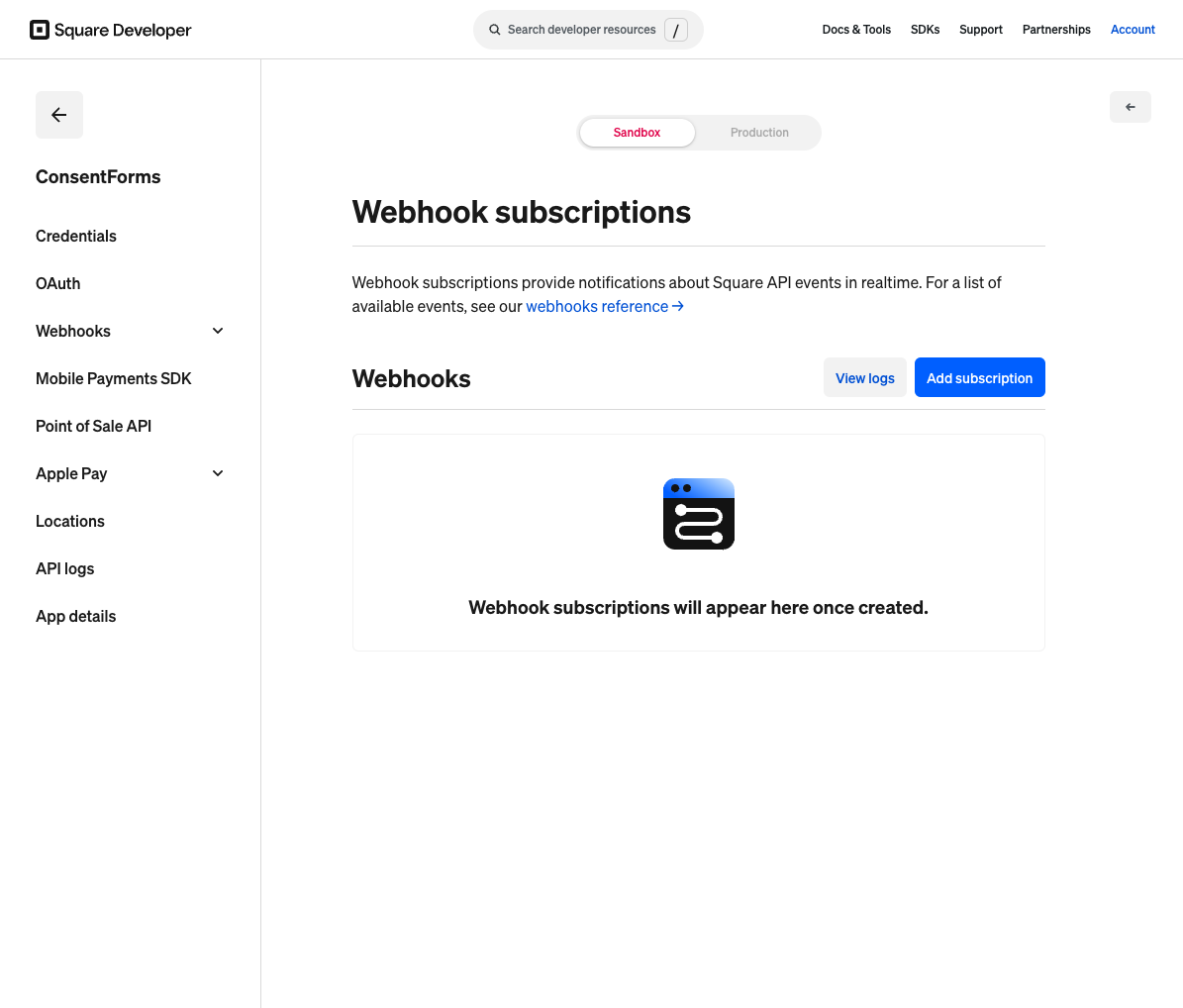
Stay in Sandbox. Add subscription. One URL covers every form in the workspace. - Paste the webhook URL from the Payment field into Notification URL. Search for
payment.updated, check it, then Save.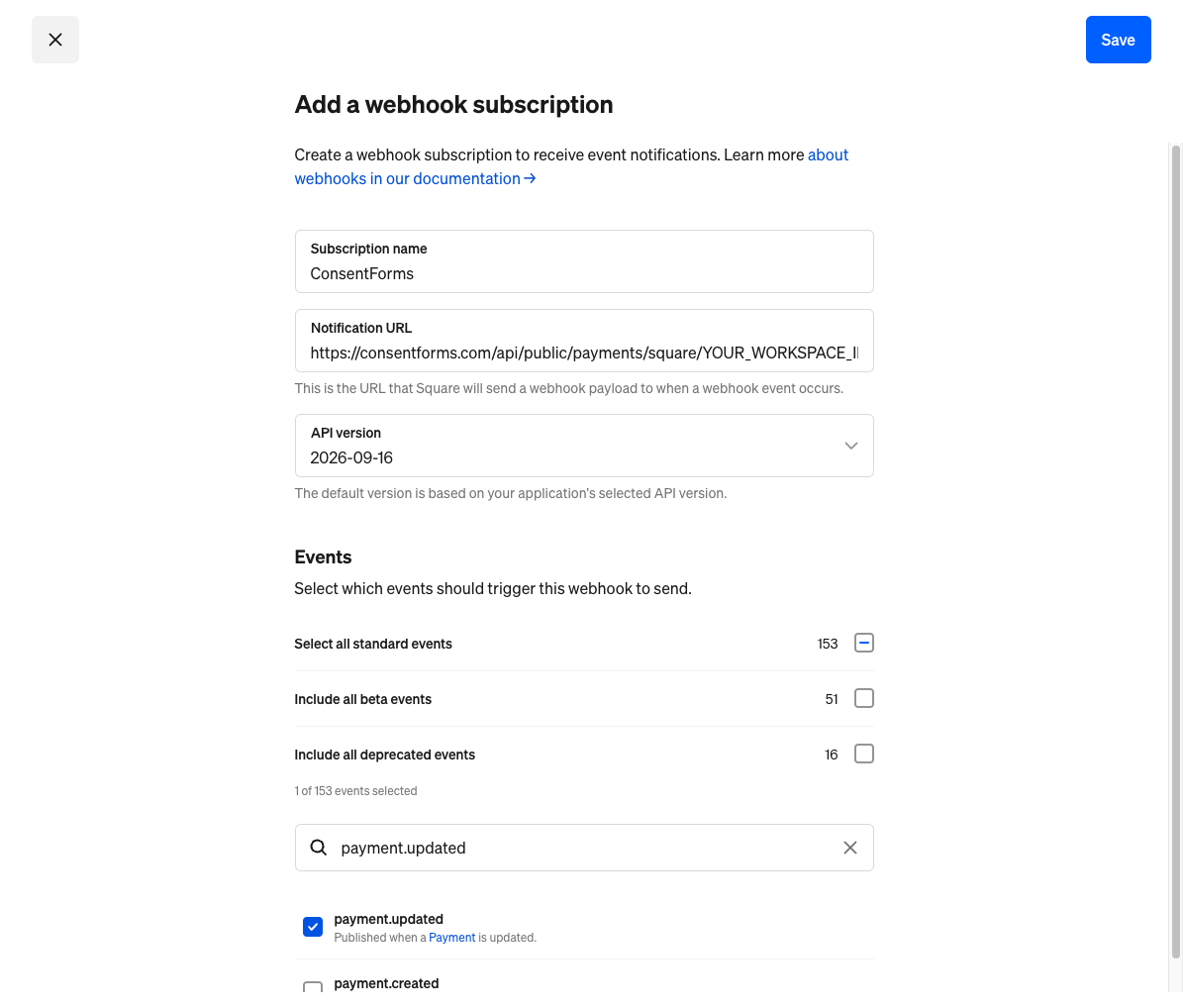
Paste the URL from the Payment field — do not invent the workspace id. Check payment.updated, then Save. - Open the subscription. Copy the Signature key (it stays dotted; use the copy button).
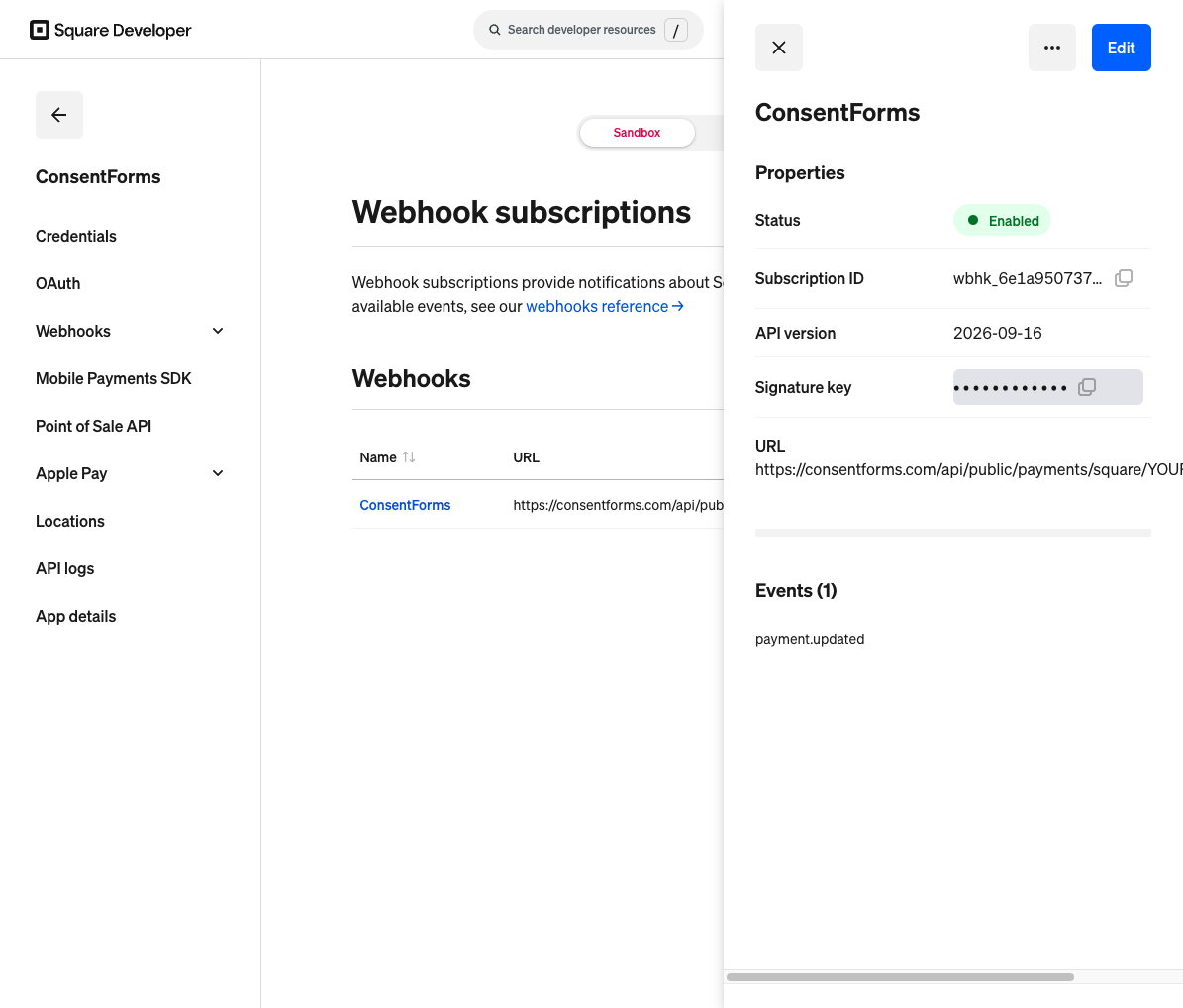
Copy the Signature key and paste it into the Payment field. We keep the value hidden here. - Back on the Payment field, paste the access token, location ID, and signature key, choose Sandbox or Production, then Save keys.
On the form
Signers can tap Pay on the field, or submit the form — if an amount greater than zero is due and they have not paid yet, we send them to Stripe or Square and bring them back to submit. An owner-set amount is always required. If the signer types the amount (a donation), they can skip it when the amount is empty or zero (minimum $0.50 to charge).